Tuesday, March 13, 2007

National BIM Standard Released for Review

National BIM Standard

The National BIM Standard (NBIMS) Version 1, Part 1 Overview Principles and Methodologies is available for a two month industry review until May 21, 2007. For more details about this event please consult the press release. The NBIMS document is available for your review below. It is in two parts, the body of the document and the appendices and references. There are also several associated documents that are hyperlinked into the PDF.

This comprehensive document has been in the works for over a year and is the collaboration of over thirty subject mater experts from many areas of the capital facility industry. There are still many issues to discuss, coordinate and resolve not only throughout the United States but also with our international counterparts. It is hoped that this effort will help with that discussion and to bring to closure any areas of confusion.

 powered by clipmarks

NavisWorks Contact

Does anyone out there have a good inside contact at NavisWorks? I've been trying and trying to get a working demo version to try out on our projects and I'm having absolutely no success. I initially tried to contact them directly, received no response. So I then contacted a local reseller, they sent me a demo version but when I try to activate the software it says I've already activated it. They don't know what to do so they forwarded the request to NavisWorks....guess what? No response!

Follow up to this....
The president of NavisWorks happened to see this and just called me directly and said I will have a working version in the morning. Thank you! Looking forward to working with you.

Importing ABS files into Revit

Unfortunately Revit will not import ACIS objects from ABS, you have to convert them to solids first.

In previous versions of ABS it was as simple as going to a isometric and exporting to ACAD, everything converted to ACAD faces perfectly, well now in ABS07 it's not so simple, with all the new options in display configurations you must have some things setup first.

If there is any piping in the project it will probably be displayed in 1-Line but we want 3D!

First go to a 3d view

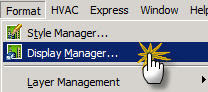
Now go to display manager


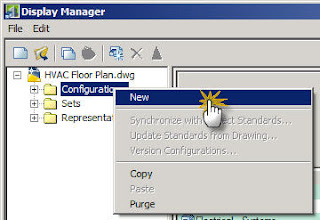
Right click on configurations and click new


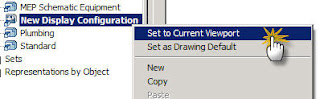
Now right click on the new configuration created and click set to current viewport


Click ok to leave the Display Manager.

Now go to style manager
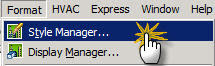


Now set all the pipe size definitions so nothing is set to 1-Line
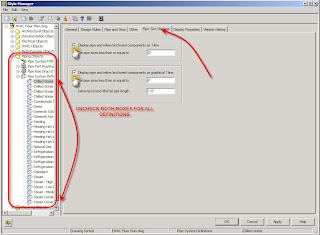


Click ok to leave the Style manager.

Now type in ConvertTo3DSolids at the command line.
Select all of the objects, select yes for erase selected objects. This will convert all of the ACIS objects into ACAD solids.

Now export to ACAD (version doesn't matter)

You will probably need to delete the 2d information the mechanical engineer has in the file or it will show in Revit.

After that import the resulting file into Revit.

The best method I have found is to create a new project and import the dwg into an in-place family. The family category needs to be set to Generic Model, if you do not set it to this the geometry will not show cut in sections.

Now just link in the rvt file to your main project, I also like to import the file to a workset that is not visible by default in all views, the ABS file really slows down revit so you only want to turn it on when you really want to see it.

What a pain! If anyone knows of an easier way please let me know. For now we will continue this so we can see the HVAC in our drawings, in the future we will probably just be using NavisWorks for collision detection.

Tuesday, February 6, 2007

Offline files - may lead to heartache for central files

If you don't know how offline files work take a peek here .
This is how I typically make families and templates available on laptops when users are out of the office, which works incredibly well, no need for different ini files to change paths because the paths stay the same.

Last week I made the mistake of making an entire project folder available offline for one user (this folder contained the central file) there was no problems until today when the user was not connected to the network for some odd reason, but because the central file was made available offline it looked as though he was still connected, so he kept working away until another user noticed that his changes were not coming through when he saved to central....long story short, he could not save back to the actual central file when he was reconnected to the network...which of course led to some unhappy users. There was lots of Ctrl+C and Ctrl+V'ing going on to try and sync up what he had lost...I realized later I probably could have ran the journal files to redo the work, but that only works half the time anyway...

Just be careful with offline files!

Add one more BIM/Revit Blog to your feeds

Since I officially have the title of BIM Manager now I figured I would start a blog to document my efforts and hopefully help some folks along the way. I will be sharing our ups and downs (hopefully more ups) as we implement Revit and other BIM related softwares.